
PanFone WhatsApp Transfer 2.4.7 is a professional solution for users who want to securely transfer, back up, and restore WhatsApp data across different devices. Whether you’re switching from iPhone to Android, upgrading to a new phone, or simply keeping your chats safe, this software offers a seamless and reliable way to manage your WhatsApp data without losing a single message and buy.
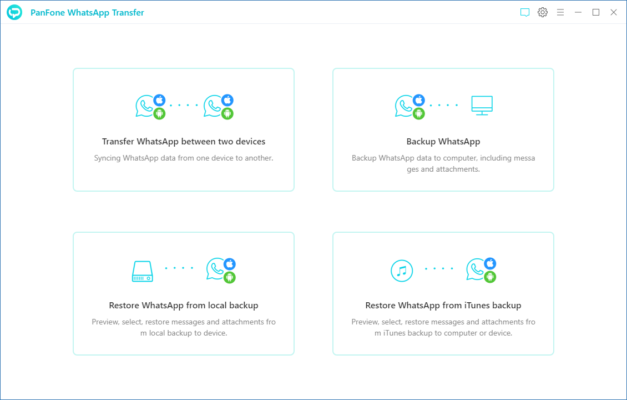
Key Features of PanFone WhatsApp Transfer 2.4.7
1. Cross-Platform WhatsApp Transfer
One of the most valuable features of PanFone WhatsApp Transfer is its ability to move WhatsApp data between iOS and Android devices directly. This is perfect for users migrating to a new phone but keeping all chat history, images, and videos intact.
2. Complete WhatsApp Backup to Computer
With PanFone, you can create a local backup of your WhatsApp chats, voice notes, images, videos, documents, and stickers directly to your PC or Mac. Unlike cloud backups, this method is faster, more secure, and doesn’t rely on internet speed.
3. Easy Restoration of Backups
Restoring WhatsApp backups is straightforward. You can restore your previous backups to the same device or to a different device—even across platforms.
4. Selective Transfer & Export
The software allows you to select specific chats or media files to transfer, making the process more efficient. You can also export conversations in formats like HTML or CSV for reading, printing, or archiving.
5. No Data Loss Guarantee
Every transfer and backup is handled carefully to ensure no message or media file is lost during the process.
System Requirements
Windows Version
OS: Windows 7, 8, 10, 11 (32-bit & 64-bit)
CPU: 1GHz or faster
RAM: 512MB minimum (1GB recommended)
Storage: 200MB free space
macOS Version
OS: macOS 10.9 or later
Additional: iTunes installed for iOS device support
How to Use PanFone WhatsApp Transfer 2.4.7
Step 1 – Install the Software
Download and install PanFone WhatsApp Transfer on your Windows or Mac computer.
Step 2 – Connect Your Device
Connect your Android or iOS device using a USB cable and ensure it’s recognized by the program.
Step 3 – Choose Your Operation
Select whether you want to Transfer, Backup, or Restore WhatsApp data.
Step 4 – Start the Process
Follow the on-screen instructions. The software will handle the rest, ensuring your data is transferred or backed up securely.
Why Choose PanFone WhatsApp Transfer 2.4.7?
1. User-Friendly Interface
Even if you’re not tech-savvy, the clean and simple interface makes it easy to use.
2. Secure and Reliable
Your data stays private, with no third-party cloud storage involved unless you choose to use it.
3. Saves Time
Faster than using built-in WhatsApp backup methods, especially for large files.
Final Verdict
If you want a secure, fast, and efficient way to transfer or back up WhatsApp data between devices, PanFone WhatsApp Transfer 2.4.7 is a great choice. It’s perfect for users switching phones, keeping local backups for safety, or restoring important conversations. With its cross-platform support and selective transfer options, it’s one of the best WhatsApp management tools available today.
✔ Tested: This software was tested on Windows 10 & Windows 11 and works smoothly without issues.
Frequently Asked Questions
- Is this software free?
Yes, it can be downloaded and used for free. - Does it support Windows 11?
Yes, it works perfectly on Windows 10 and 11. - Is it safe to use?
Yes, the software was scanned and tested before publishing.
Last updated: مايو 2026
Frequently Asked Questions
- هل هذا البرنامج مجاني؟ نعم، مجاني للاستخدام الشخصي.
- هل يعمل على Windows و Mac و Android؟ نعم، متوافق مع أغلب الأنظمة.
- هل الملفات آمنة؟ نعم، جميع الملفات يتم فحصها قبل النشر.