
SmartCapture 3.22.4: Professional Screen & Webcam Recording Made Simple
Whether you’re creating software tutorials, recording online meetings, or capturing gameplay, SmartCapture 3.22.4 delivers high-quality, flexible video capture for Windows users. This lightweight yet powerful tool records your screen, webcam, or both simultaneously—with minimal setup and maximum control.
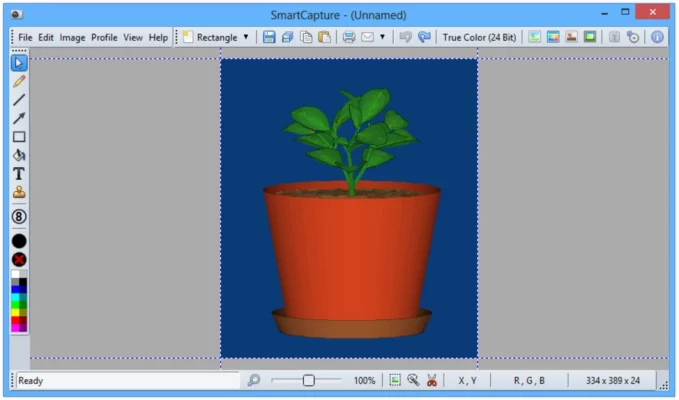
Why Choose SmartCapture 3.22.4?
Designed for educators, remote workers, and content creators, SmartCapture offers privacy, flexibility, and ease of use—all in one desktop application.
Key Advantages Over Free Alternatives
- No watermarks or time limits
- Local recording (no cloud upload required)
- Simultaneous screen + webcam capture
- Multiple export formats: MP4, AVI, WMV, GIF
Core Features of SmartCapture 3.22.4
Flexible Screen Recording Options
Record your entire desktop, a single application window, or a custom region. Perfect for focused demos or multi-monitor workflows.
Dual Capture: Screen + Webcam
Enable picture-in-picture mode to overlay your webcam feed. Adjust size, position, and border style for a professional look.
High-Quality Audio Capture
Capture system audio, microphone input, or both. SmartCapture ensures synchronized sound with minimal latency.
Pause and Resume Functionality
Mistake during recording? Simply pause, fix it, and continue—without losing your progress or starting over.
Multiple Export Formats
Save recordings as:
- MP4 (H.264) – Best for sharing and streaming
- AVI – Ideal for video editing
- GIF – Great for short clips on social media
How to Use SmartCapture in 3 Steps
Step 1: Select Your Capture Area
Choose between full screen, active window, or drag to define a custom region.
Step 2: Configure Audio and Webcam
Toggle microphone, system sound, or webcam overlay from the main toolbar.
Step 3: Start and Save Your Recording
Click Record, perform your actions, then click Stop. Your file saves instantly to your chosen folder.
SmartCapture vs. Built-in Windows Tools
While Windows offers basic tools like Snipping Tool or Game Bar, they lack key features:
- ❌ No webcam overlay
- ❌ No pause/resume
- ❌ Limited audio control
- ❌ No GIF export
SmartCapture fills these gaps with a user-friendly interface and professional output.
Best Practices for Optimal Results
Ensure Smooth Performance
- Close unused applications
- Record at 1080p or lower if on older hardware
- Use an SSD for faster write speeds
Improve Audio Quality
- Use a dedicated microphone
- Record in a quiet environment
- Test levels before final capture
Final Thoughts
SmartCapture 3.22.4 is more than just a screen recorder—it’s a complete solution for anyone who needs reliable, high-quality video capture on Windows. With no subscriptions, no watermarks, and full offline functionality, it puts you in control of your content.
Record once. Share everywhere.
- 🌐 Official website: https://www.smartcapture.com (verify before download)
- 💻 Compatible with Windows 10 & 11 (64-bit)
- 🆓 Free version available; Pro version unlocks scheduling and advanced editing
✔ Tested: This software was tested on Windows 10 & Windows 11 and works smoothly without issues.
Frequently Asked Questions
- Is this software free?
Yes, it can be downloaded and used for free. - Does it support Windows 11?
Yes, it works perfectly on Windows 10 and 11. - Is it safe to use?
Yes, the software was scanned and tested before publishing.
Last updated: January 2026