Introduction
ReIcon 2.2 is a lightweight and powerful utility that allows Windows users to save and restore desktop icon layouts effortlessly. It is the perfect solution for anyone who frequently changes screen resolution, connects multiple monitors, or experiences icon disorganization after system restarts. With ReIcon 2.2, you can preserve your preferred desktop layout with just a few clicks.
Why Choose ReIcon 2.2
ReIcon 2.2 stands out for its simplicity, small size, and efficiency. Unlike complex desktop management tools, this program focuses on one essential function—saving and restoring icon positions. It is especially useful for gamers, graphic designers, and IT professionals who use different screen setups and want to maintain an organized workspace.
Key Features of ReIcon 2.2
- Save and restore desktop icon layouts instantly.
- Support for multiple layout profiles for different screen resolutions.
- Automatic icon arrangement detection and restoration.
- Command-line support for advanced users and automation.
- Portable version available—no installation required.
- Compatible with Windows 7, 8, 10, and 11.
How to Use ReIcon 2.2
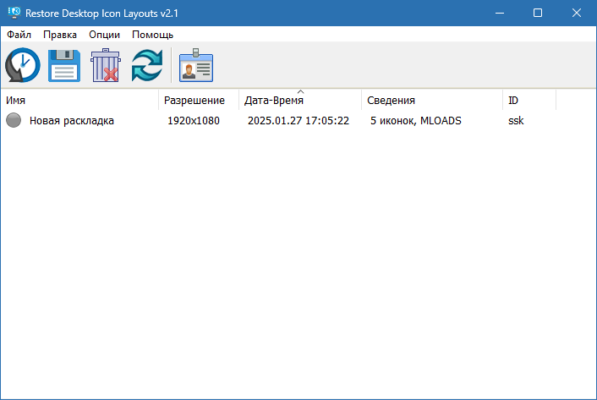
Using ReIcon 2.2 is extremely easy. After launching the program, simply click the “Save Icon Layout” button to record your current desktop arrangement. When icons get moved or mixed up, click “Restore Icon Layout” to return them to their original positions. You can create multiple layouts for different screen configurations or users. ReIcon 2.2 also supports command-line operations, allowing advanced users to automate layout saving or restoration.
Practical Use Cases
- Restoring desktop layout after changing screen resolution or connecting to a projector.
- Maintaining icon positions when switching between single and dual-monitor setups.
- Recovering your preferred layout after software or driver updates reset the desktop.
- Organizing icons for different workflows—work, gaming, or design.
Advantages of ReIcon 2.2
One of the biggest advantages of ReIcon 2.2 is its portability. It does not require installation and can be stored on a USB drive, making it easy to carry and use on multiple computers. The software is also resource-friendly, running silently in the background without affecting system performance. Its interface is straightforward, ensuring even beginner users can use
✔ Tested: This software was tested on Windows 10 & Windows 11 and works smoothly without issues.
Frequently Asked Questions
- Is this software free?
Yes, it can be downloaded and used for free. - Does it support Windows 11?
Yes, it works perfectly on Windows 10 and 11. - Is it safe to use?
Yes, the software was scanned and tested before publishing.
Last updated: January 2026