Changing the screen resolution on Windows is usually a simple process, but when multiple users share the same computer, the settings often reset or overlap. This can be frustrating, especially in environments like offices, schools, or shared family PCs where each user prefers different display settings. Carroll 131 is a lightweight utility designed to solve this problem by allowing each user to automatically apply their preferred screen resolution upon login.
What is Carroll 131?
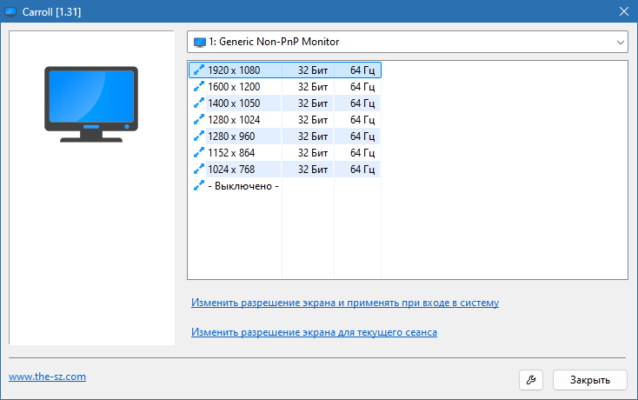
Carroll 131 is a small Windows application that gives users control over screen resolution preferences. Once installed, the program allows every user on a shared computer to choose their own resolution. Carroll then applies this resolution automatically whenever the user logs into Windows, eliminating the need to manually change settings every time.
Key Features of Carroll 131
Per-User Resolution Settings: Each user can set and save their preferred display resolution.
Automatic Application: Resolution is applied instantly at login without manual adjustments.
Lightweight and Portable: The program is very small in size and requires no heavy installation.
Simple Interface: Easy to configure, even for non-technical users.
Windows Compatibility: Works with most versions of Windows, including modern releases.
Time-Saving: Ideal for computers shared by multiple users.
System Requirements
Carroll 131 does not require powerful hardware. It works seamlessly on most Windows computers.
Operating System: Windows 7, 8, 10, or 11
Processor: Intel/AMD CPU, 1 GHz or faster
RAM: 1 GB minimum
Storage: Less than 10 MB of free disk space
Display: Monitor supporting multiple resolutions
How to Download and Install Carroll 131
Visit the official Carroll website or a trusted software repository.
Download the Carroll 131 installer file.
Run the setup and follow the simple installation process.
Open the program and choose your preferred screen resolution.
Select the option to apply the resolution automatically at every login.
Restart or log out to see your settings applied instantly.
Why Use Carroll 131?
In multi-user environments, Windows does not always remember individual screen preferences. This can lead to wasted time and inconvenience every time someone logs in. Carroll 131 solves this issue by ensuring each person gets their own customized display setting. It is especially useful in:
Workplaces where different employees share one computer.
Schools or libraries with shared machines.
Families where each member prefers different resolutions for gaming, browsing, or work.
Compared to manually adjusting resolution settings every time, Carroll 131 automates the process and improves usability.
Conclusion
Carroll 131 is a small yet powerful tool that makes managing display settings simple and user-friendly. By allowing each user to save and apply their preferred resolution automatically, it eliminates frustration and saves valuable time. The software is lightweight, easy to install, and works across different versions of Windows, making it perfect for both personal and professional environments. If you share a computer with others and want hassle-free screen resolution management, download Carroll 131 today and enjoy a customized display experience.
✔ Tested: This software was tested on Windows 10 & Windows 11 and works smoothly without issues.
Frequently Asked Questions
- Is this software free?
Yes, it can be downloaded and used for free. - Does it support Windows 11?
Yes, it works perfectly on Windows 10 and 11. - Is it safe to use?
Yes, the software was scanned and tested before publishing.
Last updated: January 2026